When a WhatsApp customer returns weeks later, who answers?
WaliChat can close quiet WhatsApp chats and, when a customer writes again weeks later, hand the chat back to their agent or, if they're away, to someone free.
A furniture shop, with four people answering one WhatsApp number (the shop is invented). On a Monday, a customer writes:
Customer: How much is the corner sofa in grey?
Sara: It's €1,240, delivered in three weeks. Let me know when you've decided and I'll book it.
Two weeks of silence. Then: "We'll take the grey one." Sara is on holiday. The chat is still hers, and her list is full of conversations that ended days ago, so the message waits there until someone happens to notice it.
Here's how WaliChat handles it. It closes quiet chats on its own (WaliChat calls this resolving), so lists only hold live conversations, and the customer isn't sent anything. When the customer comes back, the chat reopens: it stays with Sara if she's online, and goes to a colleague who's available if she isn't. Whoever answers sees the whole conversation and a note saying why it was closed.
Two settings do this together: Automatic assignment and Resolve chats automatically.
Before you start
- Both settings are part of the Business and Enterprise plans. See plans and prices.
- Only the account owner, an admin or a supervisor can change them, and each WhatsApp number has its own.
Open WaliChat and click your WhatsApp number on the dashboard. Everything below is in the menu that opens on the left.
Step 1: Let assignment move a returning chat when its agent is away
- In the menu, click Automatic assignment and make sure it's switched on. If it was off, new chats will now also be shared out in turns among whoever's online.
- Turn on Reassign chats if the currently assigned user is not online or available.
- Under it, turn on Reassign resolved chats. Leave the other two off, so a chat nobody can take stays with Sara.
From now on, when a new message arrives in a closed chat whose agent is offline or unavailable, WaliChat moves it to the next available person. If the agent is online, the chat stays with them. With departments, it only moves within the chat's department; if nobody there is available, it stays with its agent. The automatic assignment guide has every option.
What counts as online? Being connected to WaliChat and active in the last few minutes. Before a holiday, an agent can also click her photo at the top right and set her status to unavailable.
Step 2: Create a label for closed chats
Further down the menu, below Quick replies, click Labels and Create label. Call it Closed by inactivity, so your team can always see which chats WaliChat closed.
Step 3: Close chats after 3 quiet days
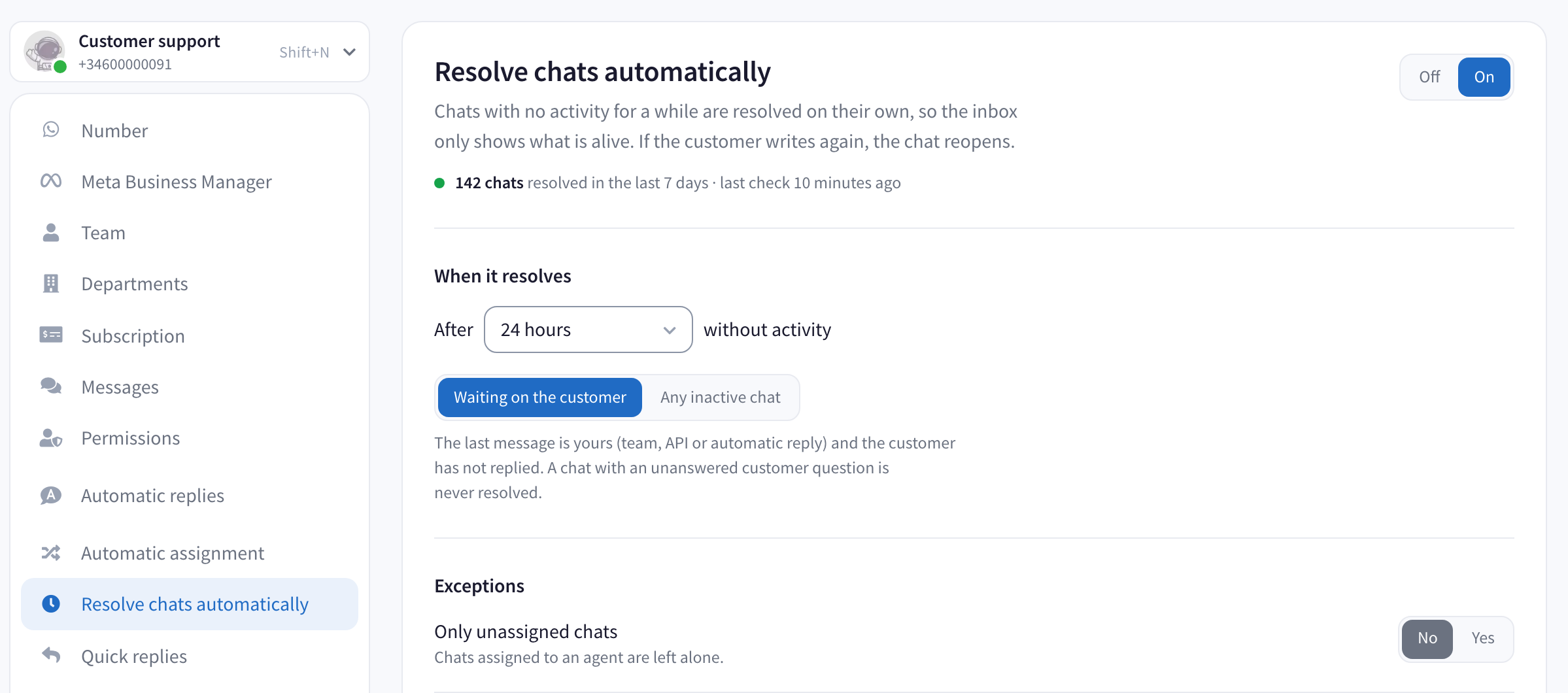
- In the menu, click Resolve chats automatically (the page in the picture at the top) and click On.
- Under When it resolves, choose 3 days. The picture shows 24 hours; 3 days gives a customer time to think, and covers a weekend.
- Keep Waiting on the customer: it only closes chats where your reply is the last message, like Sara's quote.
- Under Exceptions, set Only unassigned chats to No. Sara's finished chats are exactly the ones you want closed, even though they're assigned to her. The grey line under that switch describes the other choice, Yes.
"Resolve" is WaliChat's word for this kind of closing. A resolved chat moves to Resolved in the chat filters, and nothing in it is deleted.
Step 4: Keep the owner, leave a note for the next person
Under When resolving, also:
- Unassign the agent: No. The chat keeps Sara as its owner, which is what lets step 1 decide between Sara and a colleague. This switch sits just above where the picture starts.
- Add labels: Yes, with Closed by inactivity. That's a "platform label" in the screen's words: one you created in WaliChat.
- Remove labels: No.
- Leave an internal note: Yes, written for a colleague who never saw the chat. For example: "Closed automatically after 3 days without a reply from the customer. Read the last messages before answering."
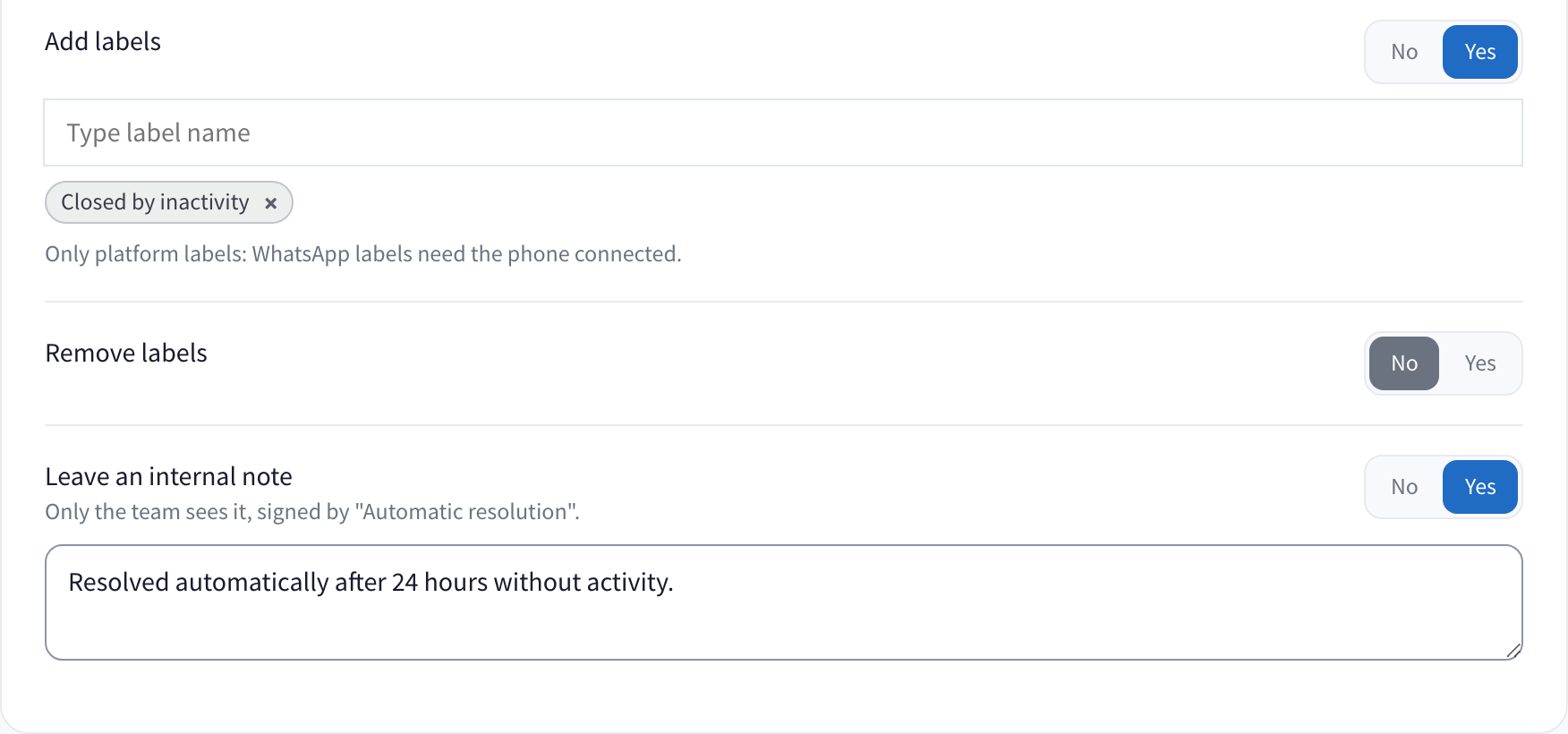
The note text is the same on every chat. The details, like Sara's price, are in the conversation.
Step 5: Save, then confirm the number
Click Save changes. If nothing matches yet, the settings are simply saved. If some chats match, WaliChat shows how many and what it will do to them, and waits for you. That number is every chat where your reply was the last message more than 3 days ago. On a number in use for a while it can run into the hundreds, and that's expected: nothing is deleted, nobody is unassigned, and each chat reopens when its customer writes. Click the blue button, which shows the number, and the chats close over the following minutes. From then on WaliChat checks every few minutes.
Two weeks later, the customer is back
If Sara is online, the chat reopens in her list. Her list now holds only live conversations, so "We'll take the grey one" is near the top instead of buried.
If Sara is on holiday, the chat reopens and goes to Leo, who's available. He scrolls up: Sara's price and delivery time are there, followed by the note and the label.
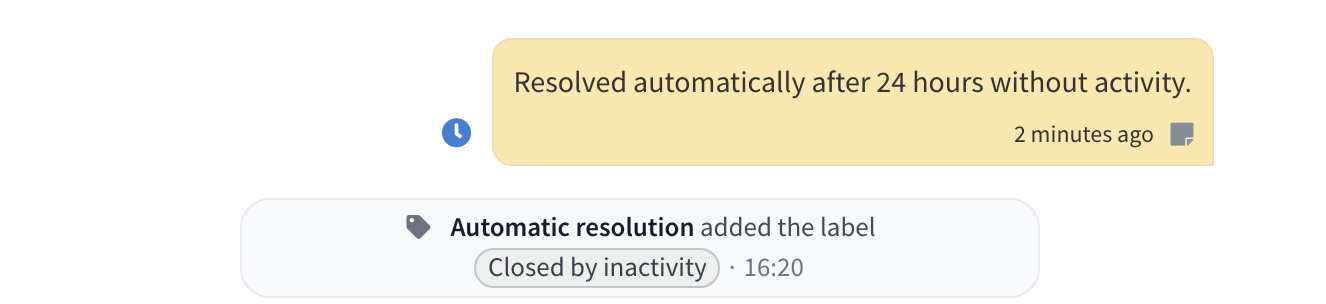
The note carries a blue clock instead of a colleague's photo, so Leo knows nobody on the team wrote it. He replies: "Great choice! I'll book the grey corner sofa for you. Which address should we deliver to?"
Questions
Some customers end with "Thanks, I'll let you know." Do those close? No. The customer wrote last, so WaliChat treats the chat as waiting on you, not on them. Answer with a short closing line, such as "Perfect, take your time. We're here when you decide." Your message is now the last one, and the chat closes after 3 quiet days.
Sara promised to call the customer back. Will that chat close? It could, because her promise is the last message. Create a label such as Call back, add it to Never resolve chats with these labels, under Exceptions on the same page, and put it on chats where your team owes the customer something.
Which chats are never closed? Chats where the customer got no reply at all, not even an automatic one, groups, pinned chats and chats with a label you excluded.
How do I reopen a chat that closed too early? Find it in Resolved or under Closed by inactivity and click Unresolve chat.
Your next step
- New to WaliChat? Create your account, connect your WhatsApp number and invite your team to the shared inbox.
- Turn on reassignment of resolved chats in Automatic assignment.
- Turn on Resolve chats automatically with 3 days, Unassign on No, and a note for the next person.
Want the full list of options? It's in the Resolve chats automatically guide.