Launch and track a WhatsApp campaign from your phone
On the phone, WaliChat walks you through a campaign: pick the template, load the list from a file or a Google Sheet, schedule it and follow each recipient.
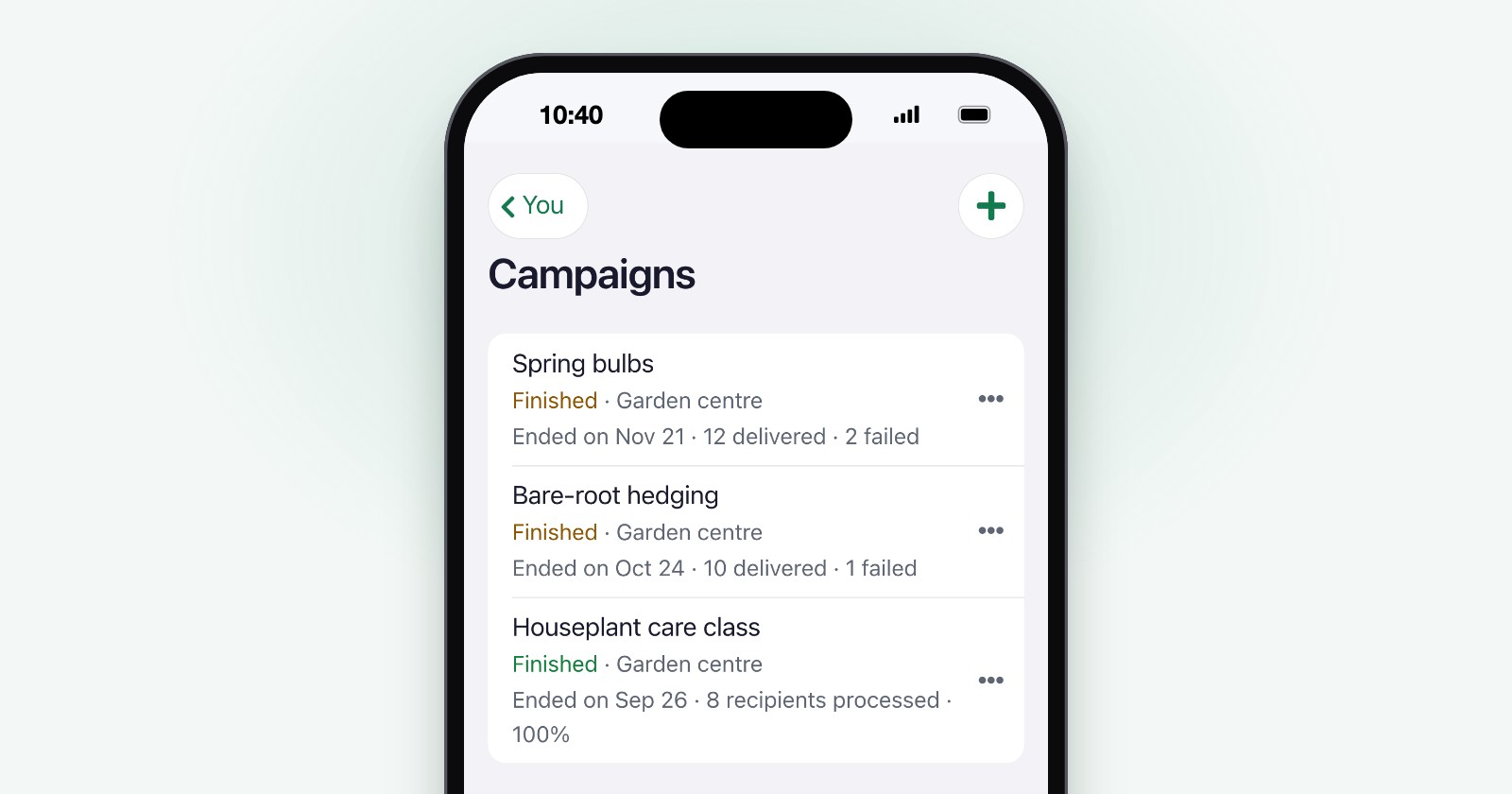
The spring bulbs reached the garden centre a week early (the business is invented). The customers who asked to hear about new stock should know before the weekend, and the message almost writes itself: tulips, daffodils and hyacinths are in, reply and we'll keep a bag for you. The list is a file the shop exports from its customer records, spring-bulbs.csv: the first name and phone of the 14 customers who said yes to news on WhatsApp.
You can send it from wherever you are, without going back to your PC. On the phone, WaliChat now walks you through a campaign one question per screen, from the template to the schedule. Once it's sending, its page shows on the same phone who got the message and who didn't. Here is the whole run, with that file.
Before you start
- Open WaliChat in your phone's browser at app.wali.chat, with your usual login.
- Campaigns are in every WaliChat plan. How many people one campaign can reach depends on your plan (100 during the trial), and on an official API number also on how many people Meta lets that number message in 24 hours. Seeing who read the message comes with Business and Enterprise. See plans and prices.
- Account owners, admins and supervisors create and see campaigns. Agents don't.
- On an official WhatsApp Business API number, a campaign sends a template Meta has approved. Outside the 24 hours after a customer's last message, Meta only lets a business write with a template, and only once it's approved (Meta's template documentation, checked on 19 November 2026).
- Write only to people who asked, and let them leave. WhatsApp's Business Messaging Policy, updated on 23 September 2026, lets a business contact someone only if that person gave it their number and agreed to receive its messages on WhatsApp, and it must respect any request to stop. In the garden centre, that agreement is what the list records.
Open Campaigns
If you're the account owner or an admin, Campaigns is in You. If you're a supervisor, it's at the top of Team. Open it and tap the + at the top right (with no campaigns yet, there's also a Create campaign button). From there the phone asks one question per screen.
Which number do you send it from? appears only if more than one of your numbers can send. What is the campaign called? is for your own list, and whoever gets the message doesn't see it. Call it "Spring bulbs".
Choose the template
Which template? lists only the approved templates that work for campaigns, with their category and language. The one you tap appears under the list as WhatsApp will show it. The garden centre's, spring_bulbs, reads:
Hi {{1}}, the spring bulbs are in, a week early: tulips, daffodils and hyacinths. Reply here and we'll keep a bag for you.
If you don't have an approved template yet, the step says so and offers Create a template. Meta says its review can take up to 24 hours, so this part is worth doing the day before.
If the template starts with an image, a video or a document, the next screen asks for it: one for everyone, or each person's own from a column of your list. Take it from a column and the recipients have to come from a file, so the screen that asks where they come from is skipped. Buttons with a part you fill in, such as a coupon code or the end of a link, are asked the same way.
Load the list from a file
Who do you send it to? has two answers: From your contacts, where you pick people with your contact list's filters, or From a file. Choose From a file, then In a file under Where is your list?, and pick spring-bulbs.csv on your phone. It can be a CSV or an Excel file, and WaliChat reads up to 5,000 rows. That's the size of the list it reads, not of the send: how many get the message is set by the limits above.
The other answer there, In a Google Sheet, reads a sheet from its link, as long as it's shared with "Anyone with the link".
Next comes What is each column?, with the columns WaliChat recognised already assigned. You need the phone column and one column for each variable in the template. In the garden centre's file, the "First name" column becomes the template's {{1}}.
WaliChat then checks the numbers and shows you the result before anything is sent:
- The message as the first person on the list will get it, with their name in place.
- A number that appears twice gets the message once. Invalid numbers stay out, and so does your own.
- If a row is missing a value, you write it in, or that row is left out.
- If not all of them fit, the screen says how many do, and you choose who goes: the first ones, the last ones, or a range of rows.
From this point the campaign is kept in your list as a draft, and the screen tells you so. A phone call or a flat battery doesn't cost you the work.
Choose when and how fast
When is it sent? is a wheel with the day and the time, in 5-minute steps, in your account's time zone (or the phone's, if the account doesn't have one). Days that already hold all the campaigns that fit aren't offered. Choose Saturday at 10:00.
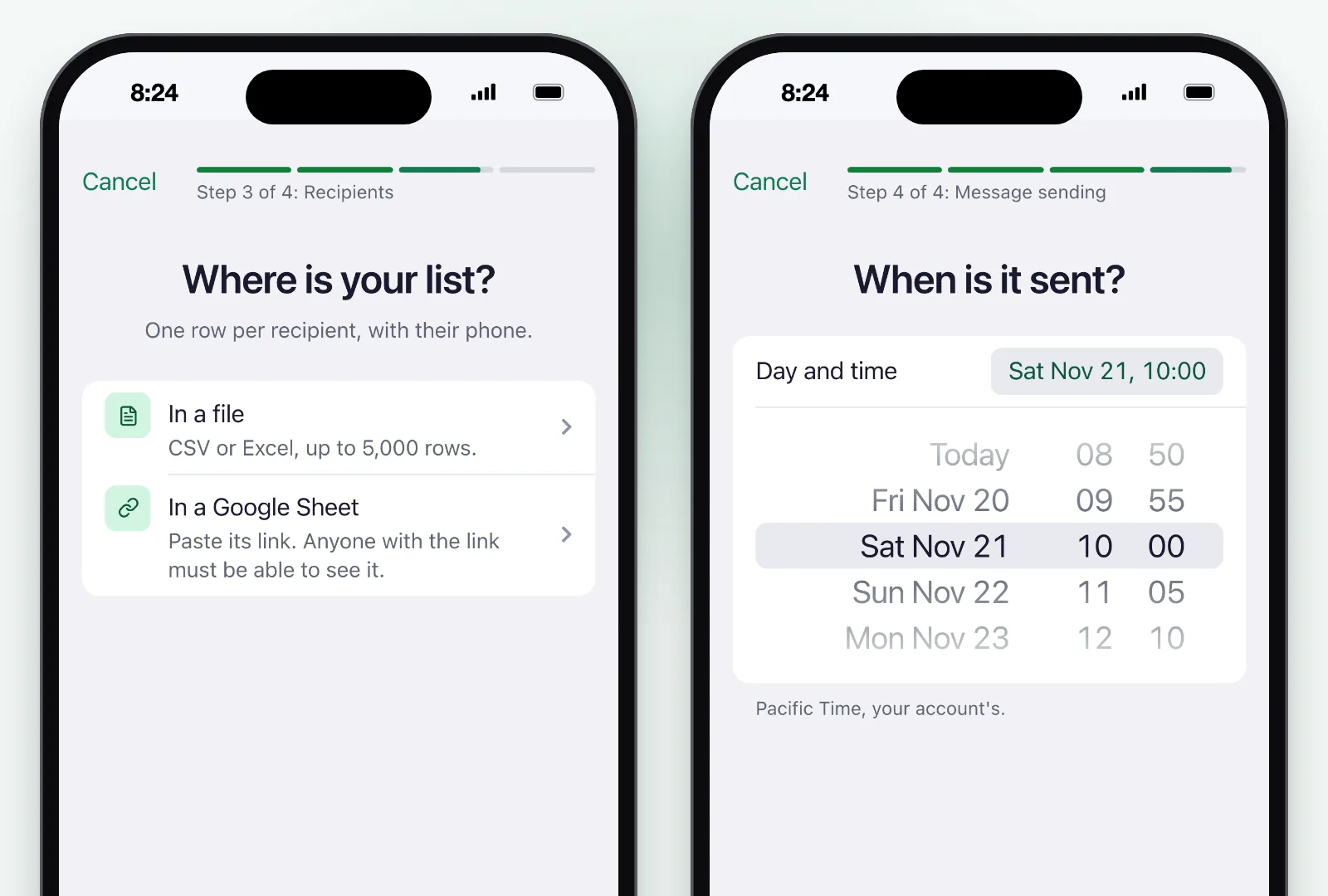
If the last message would go out at night, the screen warns you, because messages at night bother the people who get them. It also offers to start at 10:00 on a day when the whole list finishes in daylight.
At what speed? On an API number you choose between 5 and 40 messages a minute. It starts at 10, and the screen tells you how long the whole list takes at that pace.
Check it once, then schedule
Shall we schedule it? lists every answer with Change next to it. Change takes you to that step and brings you back here. On an API number, Estimated cost shows what Meta will charge for these messages, by country and kind of template. Meta charges it to your WhatsApp Business account, not WaliChat, and the real charge appears in your Meta account. Below, on any number, is the message as the first person will get it.
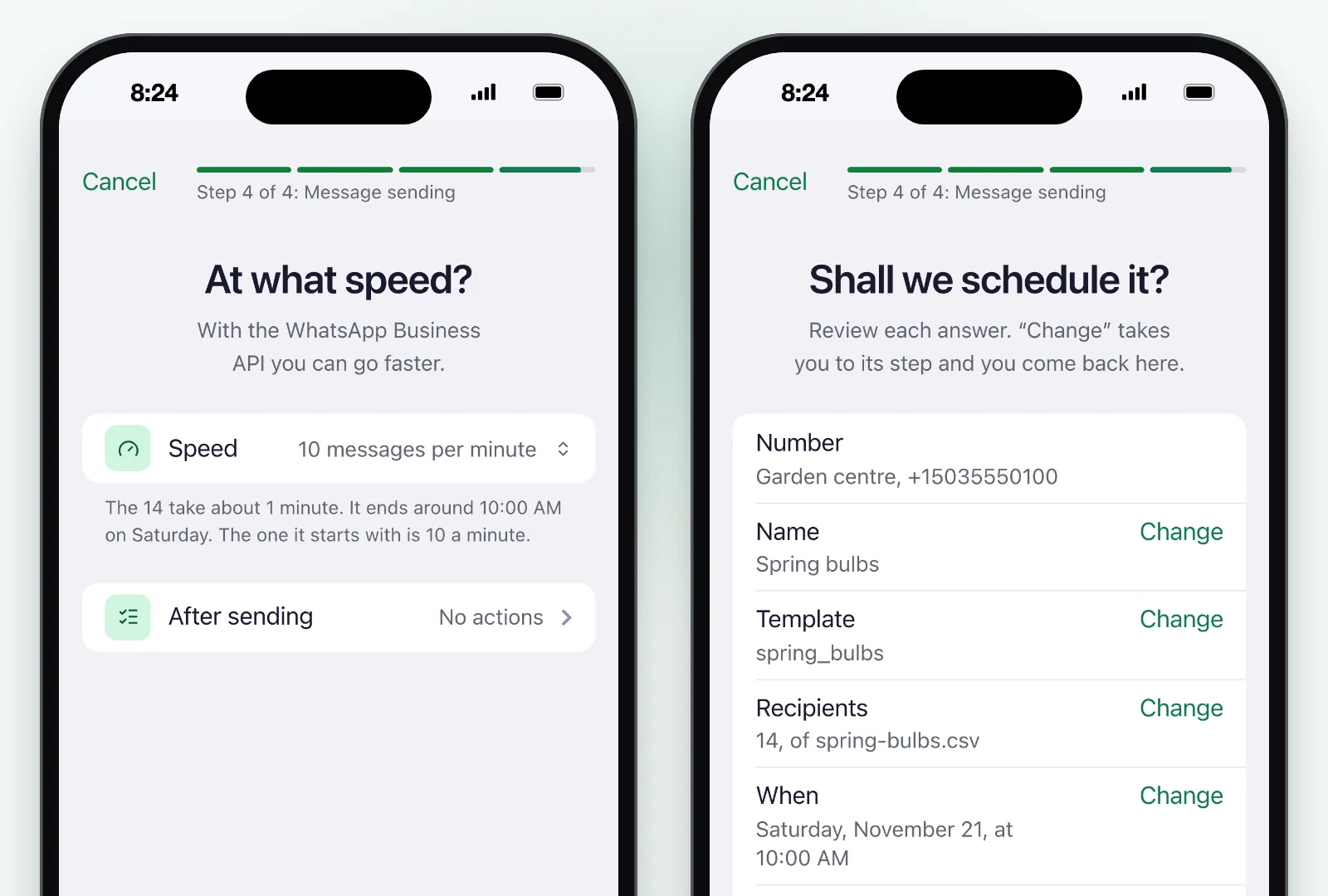
Tap Schedule campaign. If the time you chose has already passed, the button says Send now, and the campaign goes out within a few minutes.
Saturday: follow it from the same phone
Open Campaigns and tap "Spring bulbs". While it sends, its page shows how far it has got and roughly when it will end. Then Results shows how many messages were delivered and how many failed, and on Business and Enterprise how many were read. If WhatsApp is rejecting messages from the campaign, the page lists why, in Meta's own reasons.
Tap Recipients to see each person and how their message went. Show can narrow the list to the failed ones, and each carries its reason.
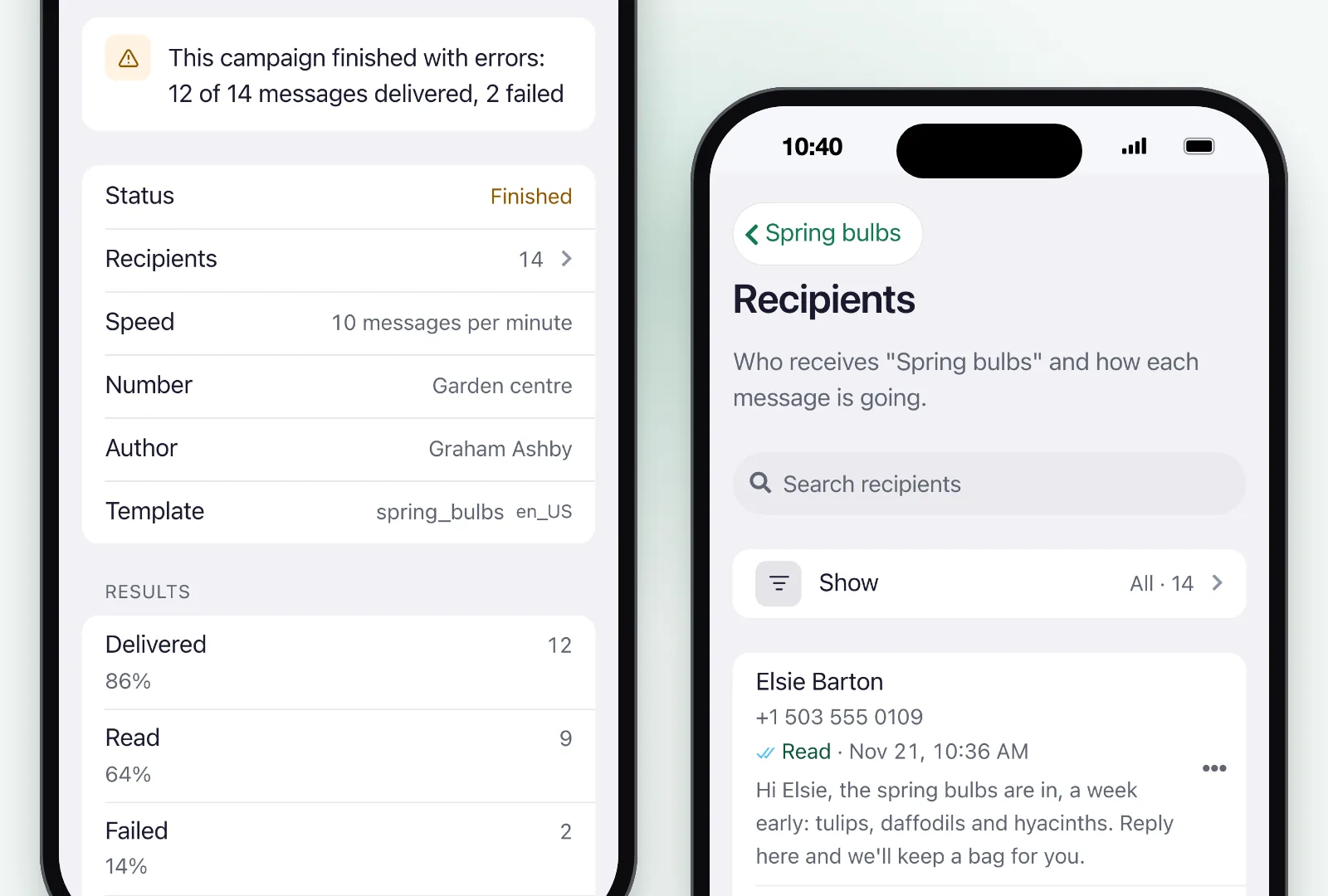
If something has to change, the campaign's ⋯ menu has Pause and Resume, and Edit while the campaign is a draft, scheduled or paused.
When customers reply
A campaign opens conversations. Replies arrive as chats on the same number, and your team picks them up in the shared inbox, with the conversation and the contact's details in front of them:
Customer: Can you keep two bags of the red tulips for me? I'll come by at noon.
Garden centre: Done. They're at the counter under your name.
On a number connected by QR
WaliChat also connects numbers by scanning a QR code with the WhatsApp or WhatsApp Business app. Campaigns work there too, from the phone, with these differences:
- There's no template. You write the message: the same for everyone, or one per person taken from a column of your file.
- With the same message for everyone, Allow opting out adds a line at the end telling people which word to reply if they don't want more messages.
- Speeds are slower. The recommended one is a message a minute, and each message adds a 5-second pause.
- Before you schedule, a warning reminds you that WhatsApp blocks numbers that send many messages to people who don't expect them.
Your next step
- New to WaliChat? Create your account and connect your WhatsApp number.
- On your phone, open app.wali.chat and go to Campaigns: in You if you're the owner or an admin, in Team if you're a supervisor. Then tap +.
- No approved template yet? Create it a day ahead, so Meta's review doesn't hold up the send.
What campaigns can do, step by step, is on the campaigns page.