Frequently asked questions
Prepare your hours, locations and instructions so the agent has information to work with.
WaliChat Flows · visual automation
Start from a flow template. Prepare the answers, connect your tools and bring in your team when a person is needed.
Flows available on Business and Enterprise. Configure and test before activating.

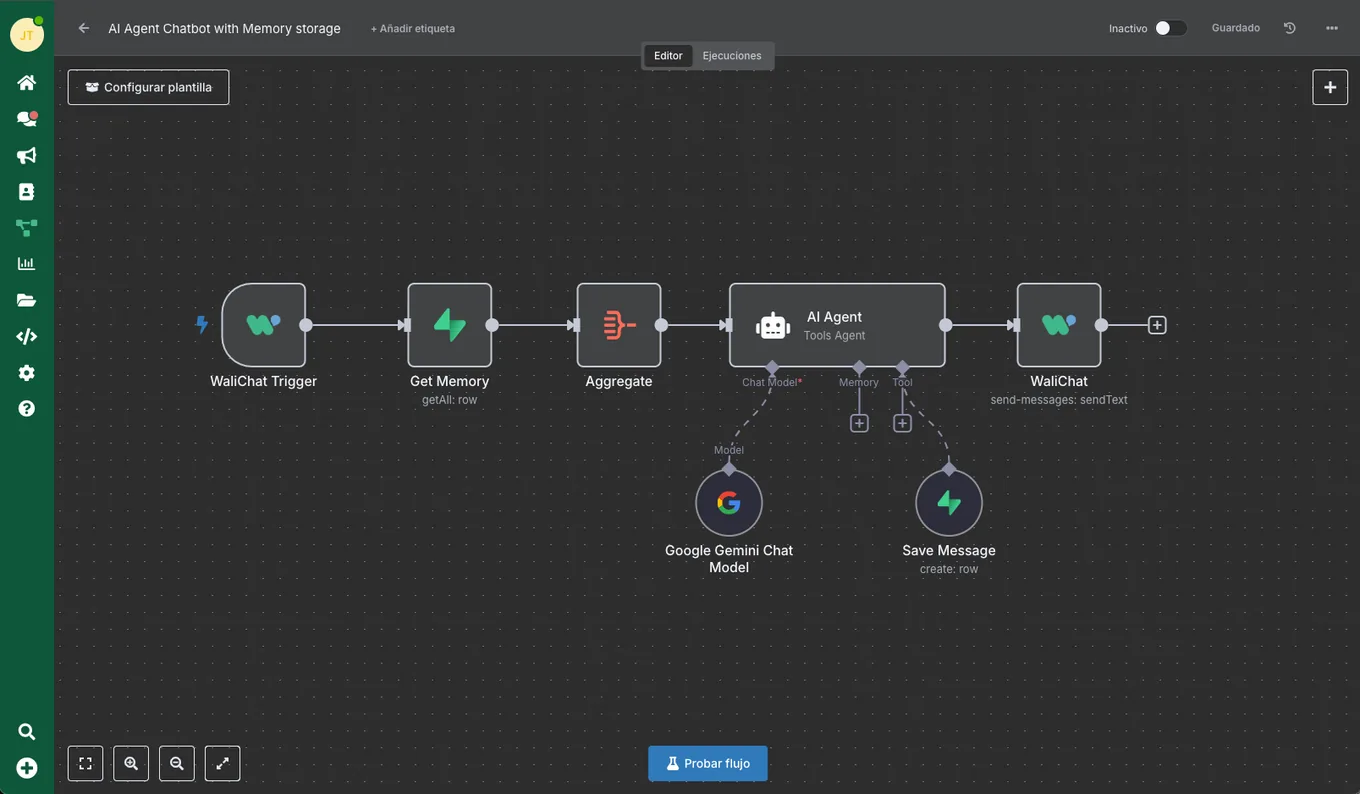
Visual flow editor
Ready-to-adapt templates
Your team in the flow
Import a flow and choose what each step should do.
Prepare your hours, locations and instructions so the agent has information to work with.
Add conditions and assignments for the requests your team should handle.
Connect a CRM, spreadsheet or calendar and define what the flow can read or write.
AI models and external services may need your own credentials and have separate charges. Templates still need your configuration and testing.
Explore the connectionsThree examples: reply, hand a chat to your team or update your CRM.
Swipe to explore the examples
What time can I pick up my order?
The AI agent uses the hours you prepared in its instructions or connected data.
Flow response
You can pick it up Monday to Friday, from 10am to 6pm.
The active flow sends through your number when the execution completes successfully.
I need to change my delivery address.
Add a rule for delivery changes and an assignment action to your flow.
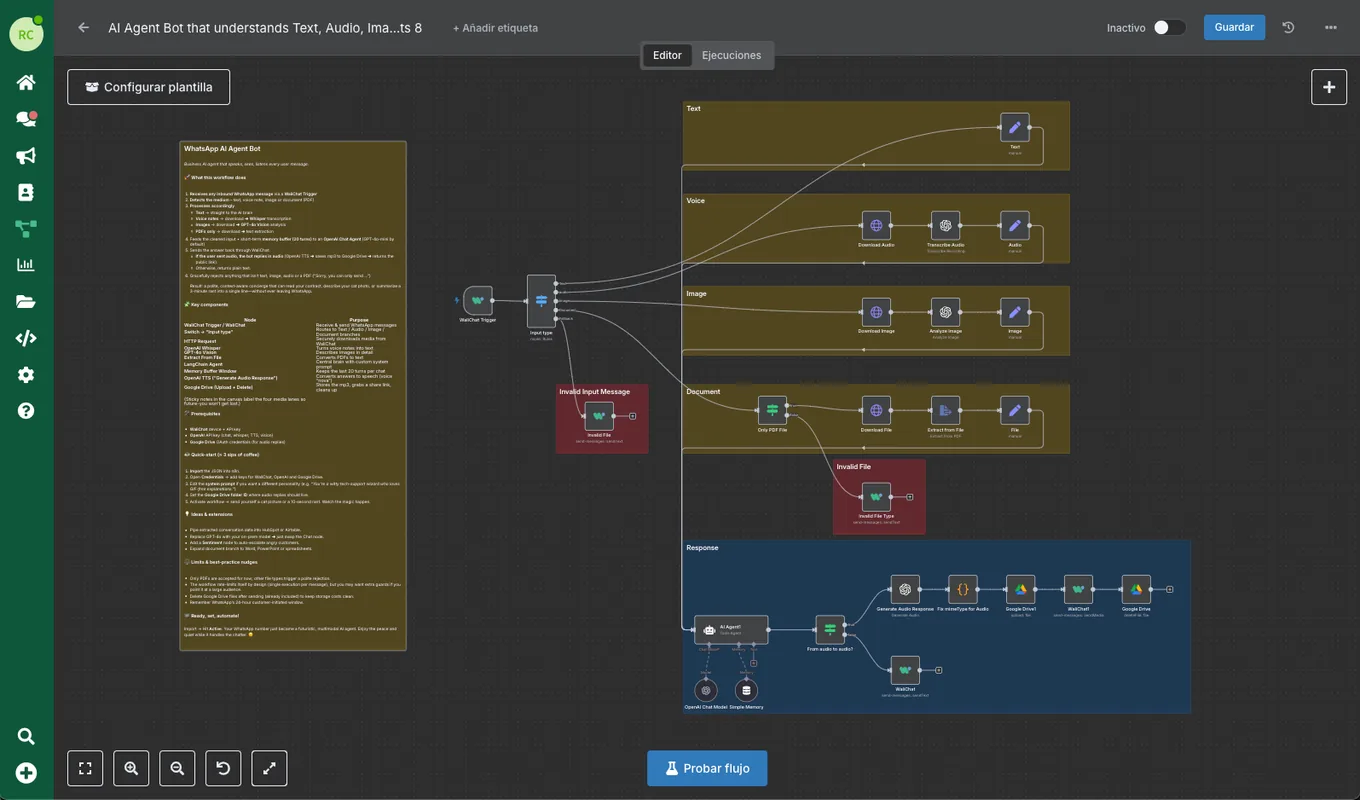
Configured handoff
Chat assigned to the orders department.
The handoff happens because you configured it. Your team receives the chat and checks the change.
Please send me information. My email is ana@example.com.
Authorize your HubSpot connection and choose the fields to save.
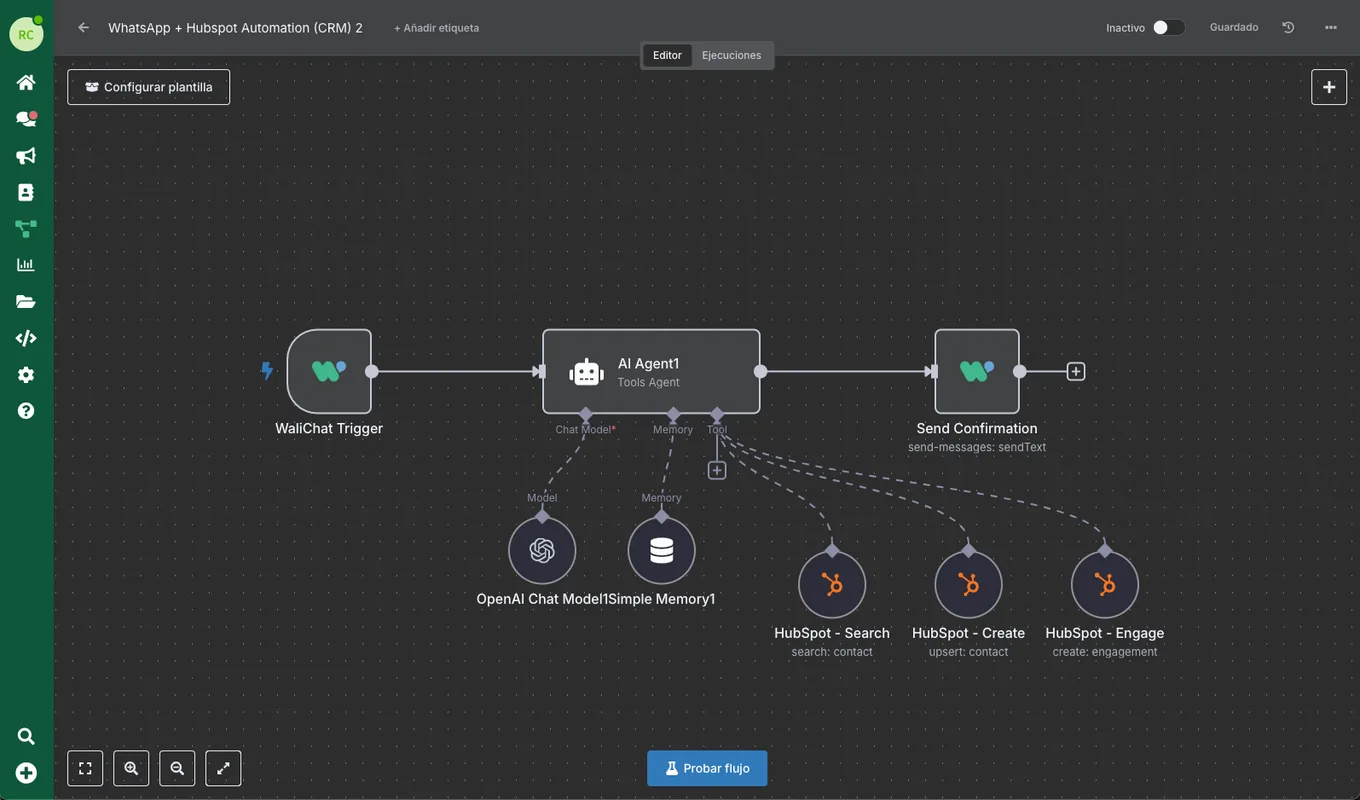
Result in your connected CRM
Contact created in HubSpot with the provided email.
The flow looks up the contact and creates it if needed. Test the fields before activating.

I have the chat and the note. I can take it from here.
Prepare the handoff for exceptions. Your team sees what happened and continues with the customer.
See how your team worksOne conversationWith the sent messages
One ownerAssigned to the right person
Your access rulesRoles and access to the number
A visual editor to decide what happens after a WhatsApp message.
Import a template or add the WhatsApp trigger for your number.
Complete the instructions, credentials and rules. Include the team handoff where needed.
Check the input and output, then activate the flow when it does what you prepared.
Before you start
Start with the visual editor and templates. Each node has fields to complete; some connections need credentials or adapted data.
Only when the handoff is configured. Add the condition and assignment action, then test the cases your team should receive.
External AI nodes can use your provider credentials. Usage of that model or connected services may have separate charges.
Yes. Edit or deactivate the flow in the editor. Check executions if something fails and test changes before activating again.
Start with WaliChat and choose a plan with Flows.