
Flows · ready-to-adapt template
Auto-assign WhatsApp Chats to Departments and Users with AI
The structure is prepared. Add your business data, connect the required accounts and test the result.
Flows available on Business and Enterprise. Configure and test before activating.
Inside the editor
A clear preview before you make it yours.
See the visual editor and the steps included in this template.
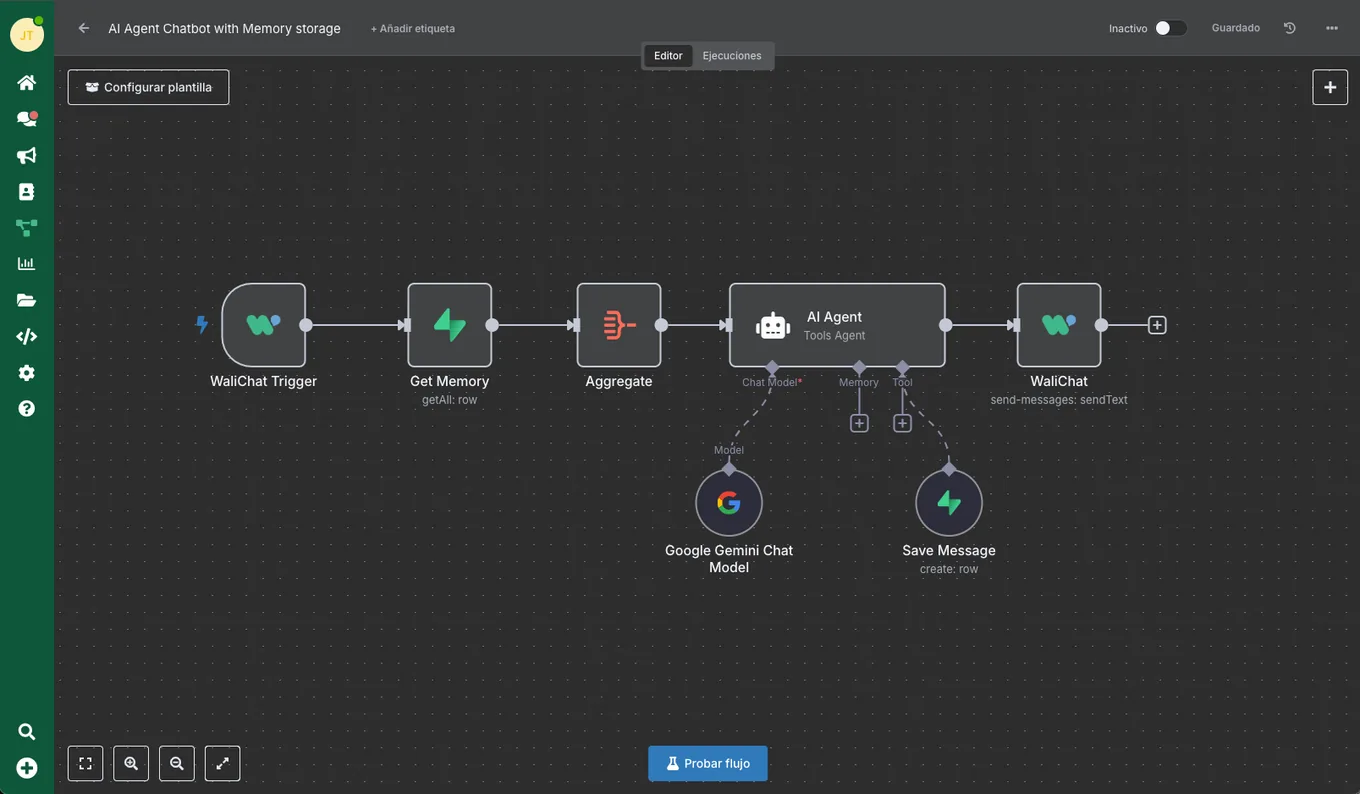
Steps in this flow
This template’s current steps. Your configuration may change what they do.
- Step 1WaliChat Trigger
- Step 2OpenAI Chat Model
- Step 3Simple Memory
- Step 4Code
- Step 5No Operation, do nothing
- Step 6No Operation, do nothing1
- Step 7OpenAI Chat Model1
- Step 8Simple Memory1
- Step 9Code4
- Step 10Sales
- Step 11Tech
- Step 12Billing
- Step 13Get Billing Team
- Step 14Get Tech Team
- Step 15Get Sales Team
- Step 16Format Emails
- Step 17Format Emails1
- Step 18Format Emails2
- Step 19Is number assigned?
- Step 20Triage AI agent
- Step 21Department Notification Composer
- Step 22Send Message to Customer
- Step 23Validate if Department
- Step 24Send Notification
A prepared structure. Your business rules.
Find this template by name in Flows. Import it into the editor, then complete and test its connections.
Choose the template
Auto-assign WhatsApp Chats to Departments and Users with AI
Prepare its connections
Add the accounts, credentials and business data required by its nodes.
Test before activating
Try a representative case and check every output before using it with customers.
Before you start
- A plan with Flows available.
- External tools may require their own accounts, permissions and usage fees.
Before you start
Does registering activate this workflow?
No. After registering, find the template in Flows, complete its configuration and run a test before activating it.
Can I change or stop the workflow?
You can edit its nodes and deactivate it in the editor. Test again whenever you change instructions, connections or data.
What should I check in the AI replies?
Check the instructions, the data it can access and the conditions for involving a person. Test unclear questions and cases where information is missing.