Your WhatsApp Inbox, Organised from Grok Bot
New in WaliChat: add the WaliChat bot to Grok Bot and it sorts your WhatsApp chats, drafts replies and follow-ups, and prepares reminders. Nothing goes to a customer until you approve it.
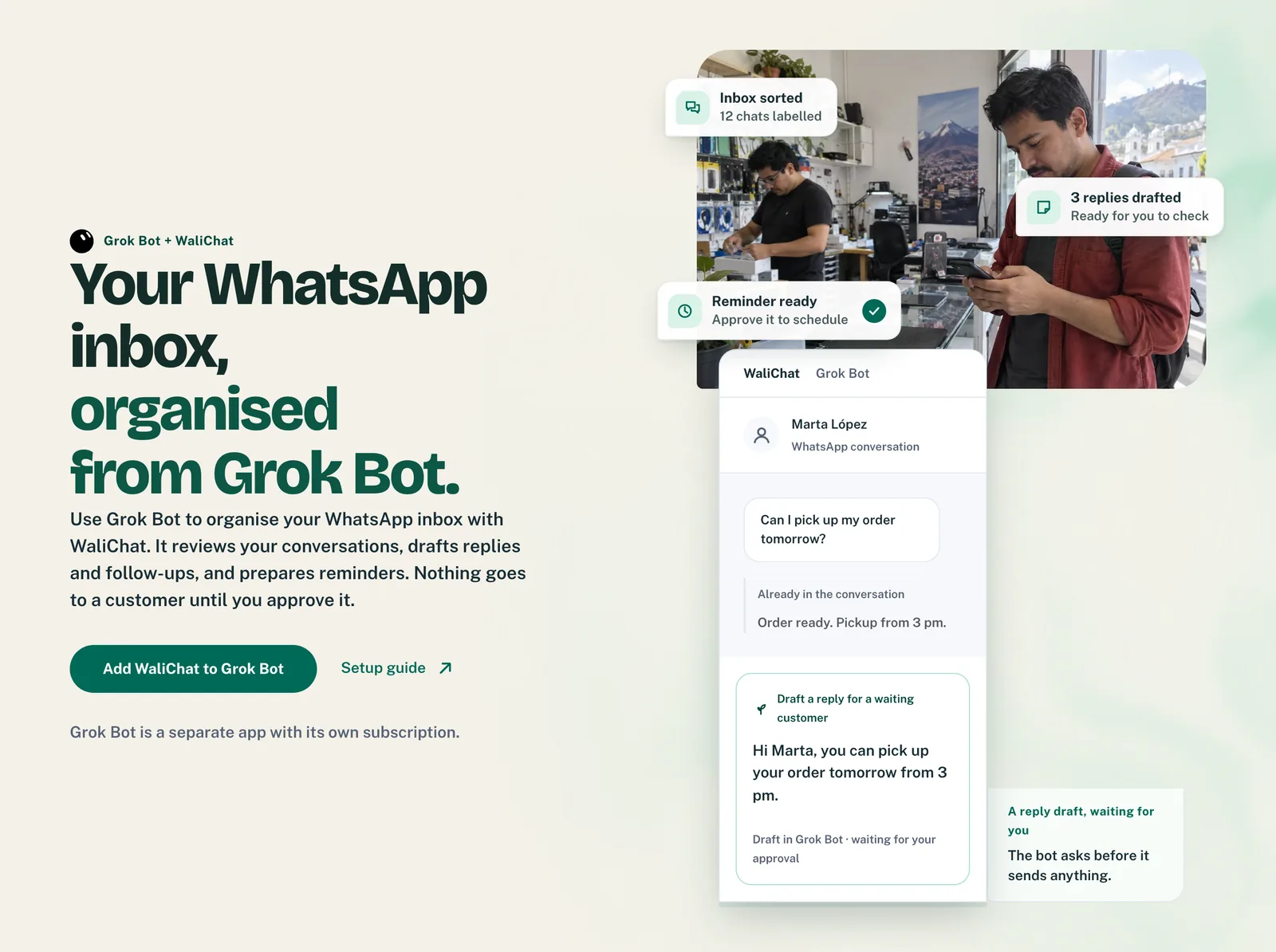
If you run a small business, you probably answer WhatsApp between everything else. A customer at the counter, a delivery at the door, and twenty chats waiting on your phone. By the evening you're not sure who got an answer, who asked for a price and never heard back, or whose appointment is tomorrow.
WaliChat now works with Grok Bot, the assistant app from xAI, the makers of Grok. Add the WaliChat bot to it and you get an assistant that looks after your WhatsApp inbox: it sorts your chats, writes reply drafts, chases quiet leads and prepares reminders.
In plain words: WaliChat is where your business WhatsApp lives: you and your team read and answer your chats there. Grok Bot is a separate assistant app you chat with, like a personal assistant on your computer and phone. The WaliChat bot connects the two, so the assistant can look at your chats and prepare the work for you.
It never sends anything to a customer without your yes. It works for you and your team, not in front of your customers.
A day with the WaliChat bot
Here's what a normal day looks like once it's set up.
In the morning, before you open the shop, the bot sends you a short brief: how many chats came in yesterday, which ones are urgent, and which customers have been waiting too long. If you've let it sort on its own, it has already labelled the new chats and left a short private note for your team on each, so whoever starts first knows what to pick up.
Around midday, it lists the customers still waiting for an answer and writes a draft for each, using the conversation and the business details you gave it. You read them, change what you want, and approve. Only then do they go out.
In the evening, it finds the people who asked about a price or a booking and went quiet, and drafts a friendly follow-up for each one. Anyone who asked you to stop writing is left out. It also spots the appointments mentioned in your chats and prepares the reminders, showing you who gets one, when, and what it says.
On Monday morning, you get the week in one message: the main questions customers asked, the chats still waiting, the people most likely to buy and what to do next.
Each of those is a routine, a job the bot does on its own at a time you choose. All four arrive paused, and you turn on only the ones you want. The bot works on Grok Bot's own servers, so they run even when your computer is off. And they only prepare work for you: a routine never sends a message to a customer. What the weekly summary can show depends on your WaliChat plan.
Just ask, like you'd ask an assistant
You don't need to learn anything. You write to the bot in plain words, for example:
Who is still waiting for an answer? Draft a reply for each one and show me before sending.Who asked about a price or a booking this week and went quiet? Draft a short follow-up for each, and skip anyone who asked us to stop.Sum up my WhatsApp inbox for the last 7 days.You stay in charge
- Customer messages wait for you. The bot shows you the exact text and who it's for, and sends nothing until you approve it.
- You choose how much it does alone. During setup you decide whether it labels, notes and assigns chats by itself or asks you first. Your customers never see those changes.
- Your team keeps working as usual. The bot works on the same WaliChat inbox your team already uses, and everything it adds shows up for them there.
- You can stop it at any time. Pause its routines in Grok Bot, or delete its key in WaliChat and it can no longer reach your account.
- Where your chats go. What the bot reads goes into your own Grok Bot account, under Grok Bot's data terms, which are on the Grok Bot site. Delete the key and it can't read anything new.
Set it up
You need the Grok Bot app on your computer (Mac or Windows), a paid plan that includes Grok Bot, and a WaliChat account with your WhatsApp number connected. That plan is billed separately from WaliChat: the download and the plans are on the Grok Bot site.
In step 2 you'll land on Grok Bot's website, which is in English. It shows Grok Bot's usual note for bots made by other companies, like ours. That's normal: just click Add to Grok Bot.
- Create your WaliChat account and connect your WhatsApp number. Your customers keep writing to the same number. When you sign up, WaliChat guides you through connecting it.
- Open the WaliChat template for Grok Bot, the ready-made bot, and click Add to Grok Bot. That opens the Grok Bot app, where you confirm with Add Bot.
- Open the new WaliChat bot. Setup starts on its own. If it doesn't, type Start.
- In WaliChat, open Developers → API keys and create a key for Grok Bot. Don't worry about the name: you won't write any code. The key is a code that lets the bot into your WaliChat account. It isn't your login password, and deleting it switches the bot off at any time. Make it only for Grok Bot, because the AI can see it and may keep it in your chat with the bot. When the bot asks for it, paste it in and approve the connection.
- Choose your WhatsApp number and answer the bot's questions: your business, language and tone, opening hours, timezone, team, and how much it may do without asking.
- Ask it for a preview of your inbox, check the labels and assignments it suggests, and tell it to apply them.
- Turn on the routines you want.
Only the account owner or an admin can create the key. The Grok Bot page walks you through the setup and answers the most common questions.
Questions
What does it cost? Two plans: your WaliChat plan as usual, and a paid plan that includes Grok Bot, billed separately (the current plans are on the Grok Bot site). The WaliChat template itself is free.
Does it reply to my customers on its own? No. It drafts, you approve. Your customers keep talking to you on WhatsApp exactly as before.
Who approves the drafts? Whoever uses the bot in Grok Bot, usually you. Your staff don't need Grok Bot: they keep answering from WaliChat.
Does it know my prices and my opening hours? It knows what you tell it during setup. If a reply needs a fact it doesn't have, it asks you instead of guessing.
Do I have to leave my computer on? No. You set it up from your computer. After that the bot works on Grok Bot's servers, and you can chat with it and approve drafts from the Grok Bot app on your phone.
How do I disconnect it? Pause the routines in Grok Bot. To remove its access completely, delete its key in Developers → API keys. Messages you already approved and scheduled stay scheduled, so check them in WaliChat.
Start today
Create your WaliChat account, connect your WhatsApp number, and add WaliChat to Grok Bot. Tomorrow can start with a short brief instead of a pile of unread chats. More on the Grok Bot page.